
The Press and the Archive
The Press prints a piece of code or terminal output as a folio: set like a page of verse, numbered in the margin every fourth line as editions of sonnets are, titled, dated, signed and sealed in wax. The paper, the seal, the face of the text and the signature are yours to choose.
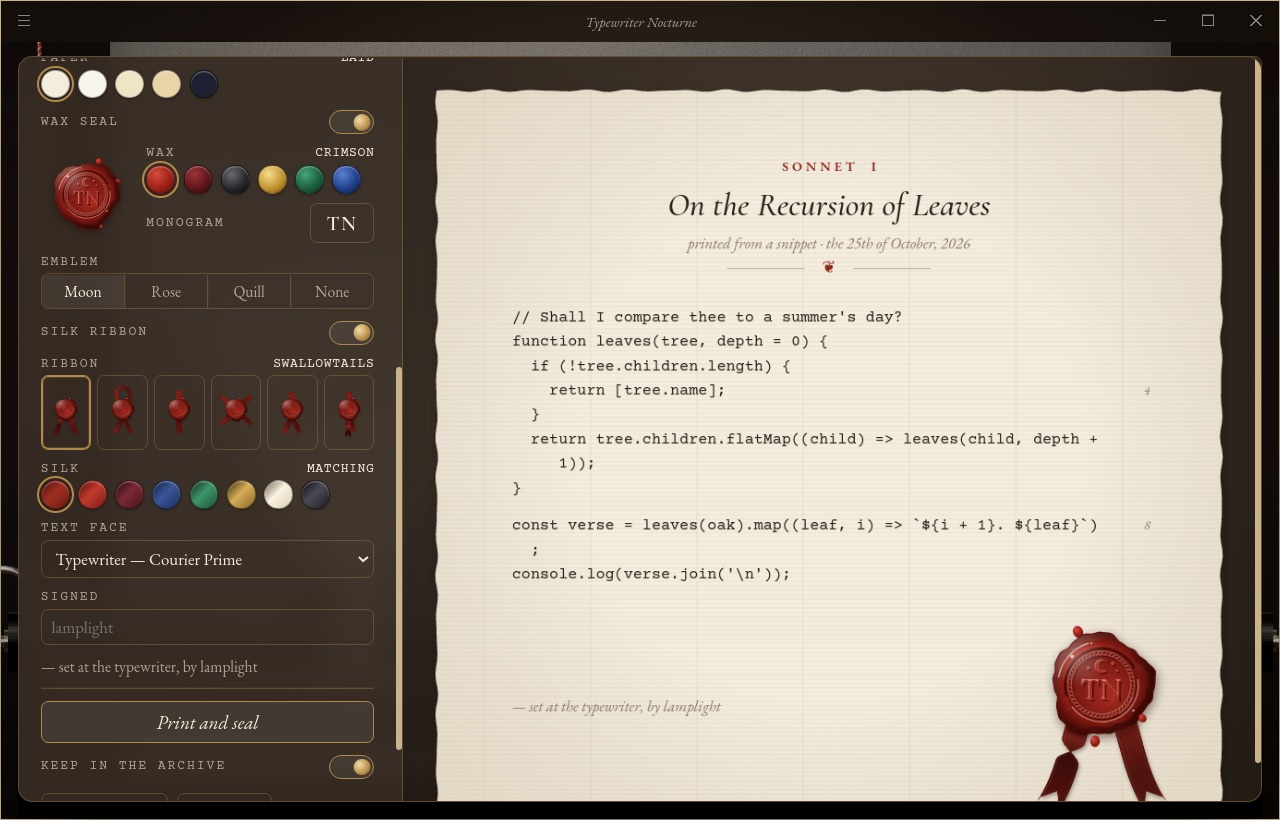
Printing
Open the Press with the quill at the top right, from the View menu, or with ⌘ ⇧P (macOS) / Ctrl ⇧ P (Windows and Linux).
Choose what to print:
- Selection: the text selected in the terminal (chosen automatically when there is one),
- Screen: the rows of the terminal as they are on screen now,
- Command: the last command you ran, with everything it printed,
- Snippet: anything you paste or type into the box.
Only Snippet has a text box. The other three show how many lines they will print and the first few of them, and read the terminal again at the moment you print.
While you choose, the sheet on the right shows the folio as it will print, marked Preview: every change of source, title, text, paper, seal, ribbon or face redraws it. Until there is something to print, it is set with two sample lines, so the paper and seal still show.
Give it a title and choose Print and seal. The folio is typed line by line with the sound of the machine, then the seal comes down.
Sonnet XVIII
// Shall I compare thee to a summer's day?
function leaves(tree, depth = 0) {
  if (!tree.children.length) {
    return [tree.name];                                   // 4
  }
  return tree.children.flatMap((child) => leaves(child, depth + 1));
}
Text is kept as plain text: control characters and colours are dropped, tabs become spaces, long lines wrap with a hanging indent, and blank lines become breaks between stanzas.
Paper, seal and type
Under Paper, seal and type in the Press:
| Option | Choices |
|---|---|
| Paper | Laid (laid and chain lines), Cotton (fibres in a white rag sheet), Vellum (smooth, warm), Parchment (stained, darker at the edges), Night (a dark sheet with pale ink and gilt rubrics) |
| Wax seal | Seal the folio in wax, or print it without a seal |
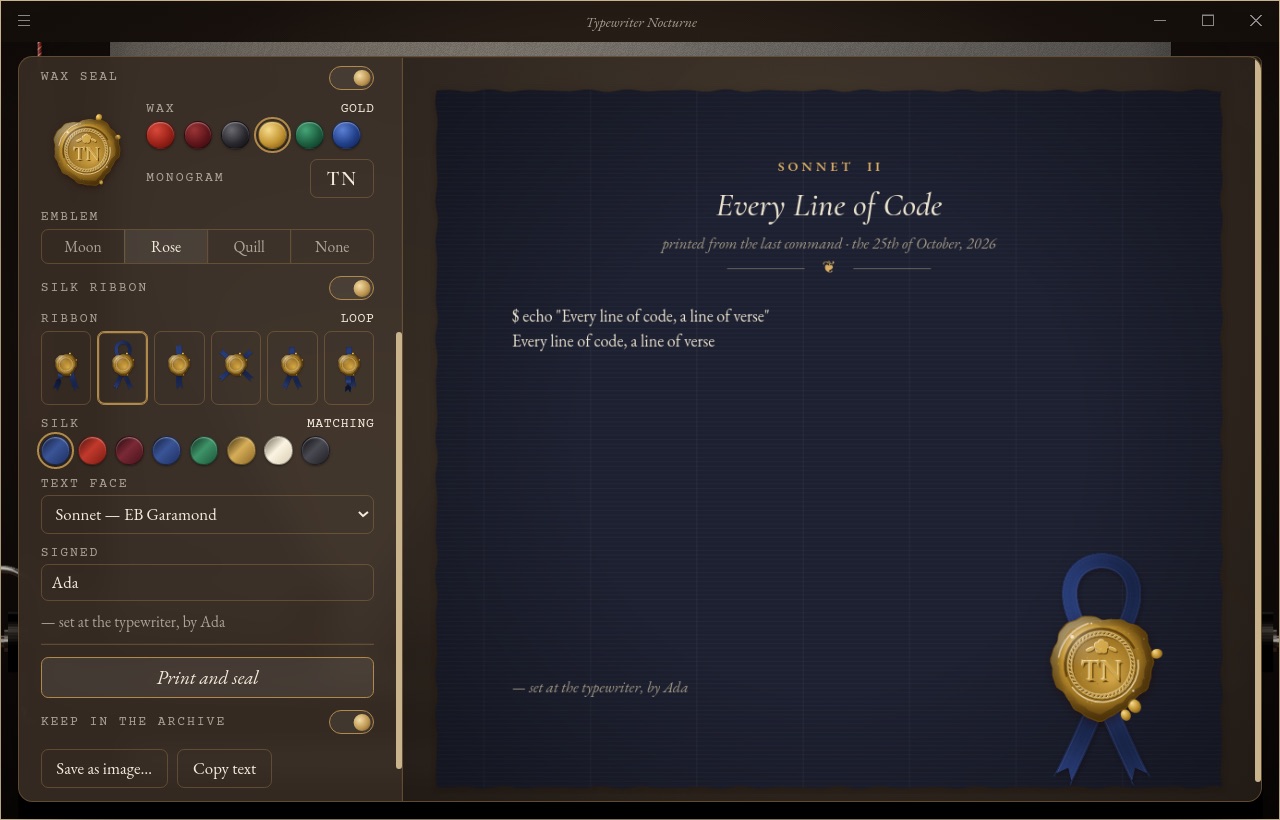
| Wax | Crimson, Oxblood, Black, Gold, Emerald, Sapphire; each with its own silk |
| Monogram | One or two letters pressed into the seal; TN until you choose your own |
| Emblem | A crescent with stars, a heraldic rose, a quill, or none |
| Silk | The ribbon's colour: Matching (the silk that goes with the wax), Crimson, Burgundy, Navy, Emerald, Gold, Ivory or Black |
| Ribbon | How the silk is laid under the seal, each shown under a little seal in the chosen wax: Swallowtails (two tails), Loop (a loop above, two tails below), Band (one band down through the seal), Cross (two bands crossed), Banner (a band from above, two tails below), Pendant (a band from above falling in two long tails) |
| Silk ribbon | The two silk tails under the seal, or the seal alone |
| Text face | Typewriter (Courier Prime), Sonnet (EB Garamond, an upright book face), Display (Cormorant Garamond), IBM Plex Mono, the terminal's font, or any installed family |
| Signed | The name in “— set at the typewriter, by …”; empty, it reads by lamplight |
The seal beside the options shows what will be pressed. The seal is drawn as real wax: a pool with a rounded, glossy edge, mottled where it cooled unevenly, with a few drops that ran off; a raised lip round a sunken field; a twisted-cord border, and the monogram and emblem (a crescent with five-pointed stars, a heraldic rose, a quill with its barbs) softly moulded in it; grain and highlights. The ribbon is draped satin, laid as you choose, with a sheen along it, fine hems and swallowtail ends; a tail may turn over to show its back. A folio keeps the style it was printed with, so it looks the same when you open it again from the Archive.
The Archive
With Keep in the Archive on (the default), every folio you print is kept and numbered: Sonnet I, II, III… The Archive tab of the Press (⌘ ⇧ O / Ctrl ⇧O) lists them, newest first. For each one you can:
- open it to see the page again,
- rename it with ✎ (Enter keeps the new title, Esc cancels),
- Save as image…: write the page as a PNG wherever you choose,
- Copy text: put the original text on the clipboard,
- delete it (choose × and confirm).
To delete several at once, choose Select, tick them (or Select all), then Delete and confirm.
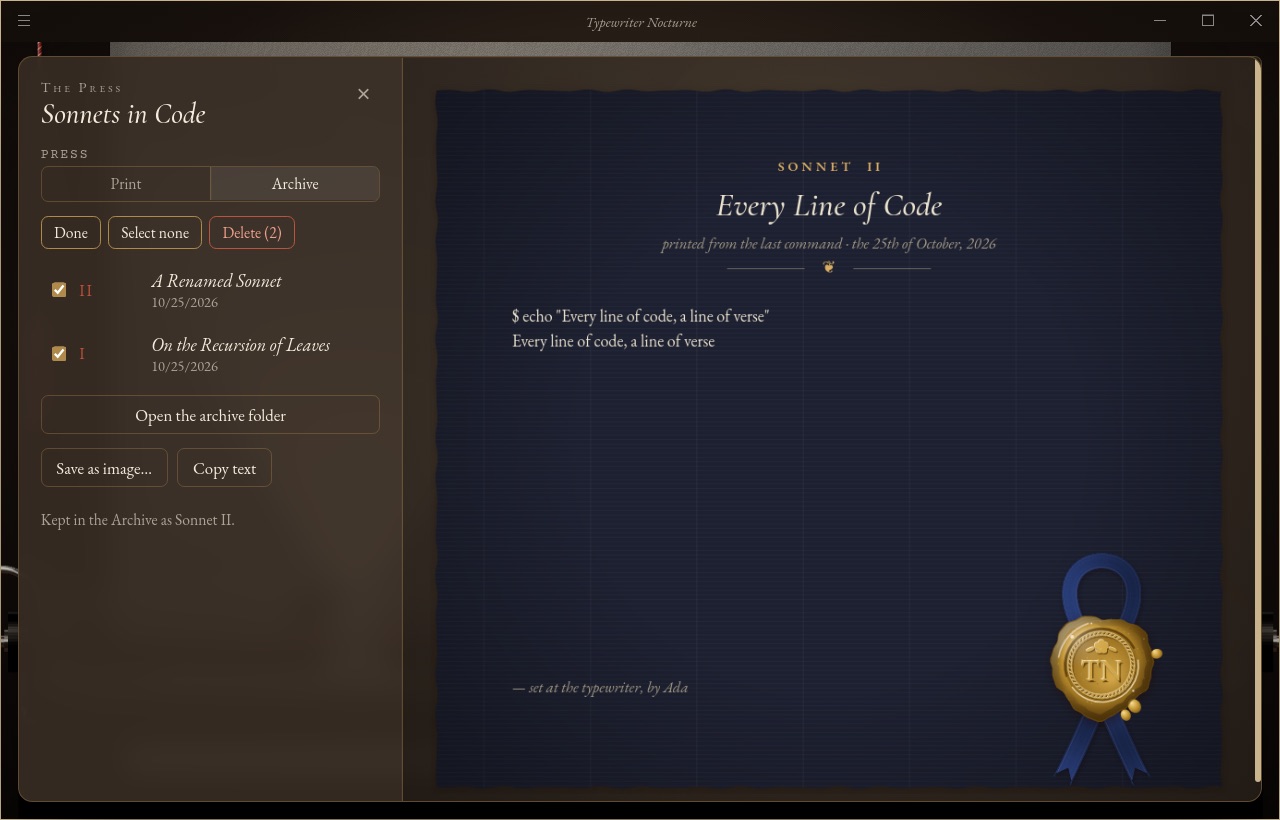
Open the archive folder shows where the folios are kept: a folder named archive in the configuration directory, one small JSON file per folio, on this computer only. Nothing is uploaded. If you print things you would rather not keep, switch Keep in the Archive off in the Press or under Press & Archive in the Studio; printed pages are then only shown, and can still be saved as an image.